Use this dialog box to add a new menu item.
|
Name |
The name of your menu item. |
|
Type |
Indicates where the menu item appears in your Applaud tenant.
|
|
Include page header |
This option appears after you select the Sub-menu option. It shows the Page header options. |
Page header (Sub-Menu only)
|
Model name |
The list of available models in your Applaud tenant. |
| Header |
You can either create a new header or choose from any existing ones. If you haven't created any, you need to create one.
|
Create a new header
| Header name | The name of the page header. This helps you identify your header so you can add it to other pages. |
Text
| Title |
The main text that appears in the header.
|
| Sub title |
The text that appears below the Title.
|
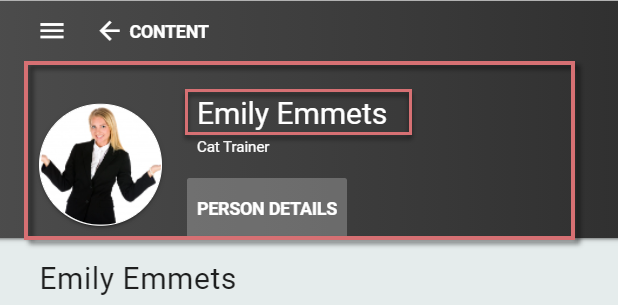
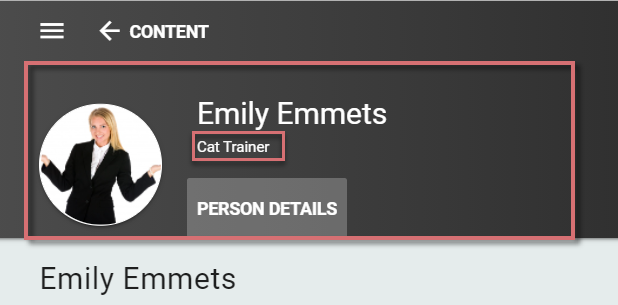
Avatar / icon / image
Style:
|
No avatar, icon, or image |
Nothing is shown. |
|
Avatar |
The user's photo is shown in a circle. |
|
Image |
The user's photo is also shown in a circle. |
|
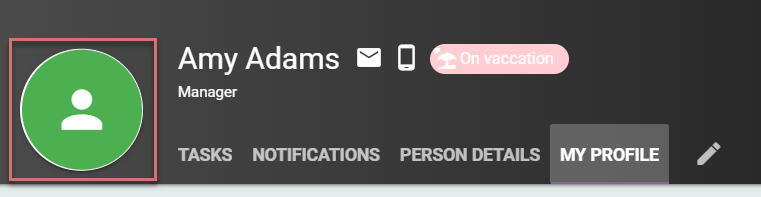
Icon |
An icon is shown instead of a photo. You must add properties to the model for the icon and a color.
|
Actions
Actions are displayed as small icon buttons which appear alongside the title. They can open other pages or external links.

| Title | The text appears when you place your mouse cursor over the icon. |
| Type of action | Either open an existing page in your Applaud tenant or define a link to open in a new page or in a dialog box. |
| Target | Either a list of pages for you to select from or a box where you can type your URL. You can use the mailto: and tel: HTML elements so you user can tap the telephone icon and call the person or send an email. |
| Icon | Choose the icon to use as your button. |
| Hide/show based on a model property | This is a list of any boolean properties in your model. If your model doesn't have any boolean properties, this list is empty. |
| Condition | You can choose if you want to hide the action button if the boolean property is true or show the action button if the boolean property is true. |
Chips
Chips are shown based on some condition and convey a small piece of information.
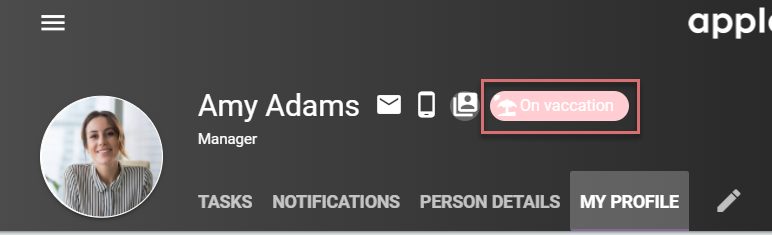
| Property | The boolean property in your model you want to use. |
| Condition | Choose if you want to show the chip if the boolean property is true or false. |
| Text | The text you want to appear in the chip. |
| Color | The color of the chip. This opens the color picker and you can choose any color. |
| Icon | The list of icons you can choose from to appear on the chip. |
Choose an existing header
| Header to use | A list of existing headers for you to choose from. |